Archived documentation. This historical release predates the Cobalt rename. Its executable, configuration paths and package names use the former product name. For current Cobalt usage, consult the latest release. Current Cobalt documentation.
Documentation version: release-0.1.0a · Source revision
Ches
A modal terminal editor with a tile-based workspace.
THIS IS MY PERSONAL EDITOR; FEEL FREE TO CLONE AND BUILD FROM SOURCE BUT ALL DECISIONS ARE MINE
Ches brings Vim-style editing, floating shells, code completion, language-server navigation, and Git into one keyboard-driven workspace. Written in OCaml, with a Bonsai_term frontend.
Getting started · Keybindings · Configuration · Packaging · Documentation
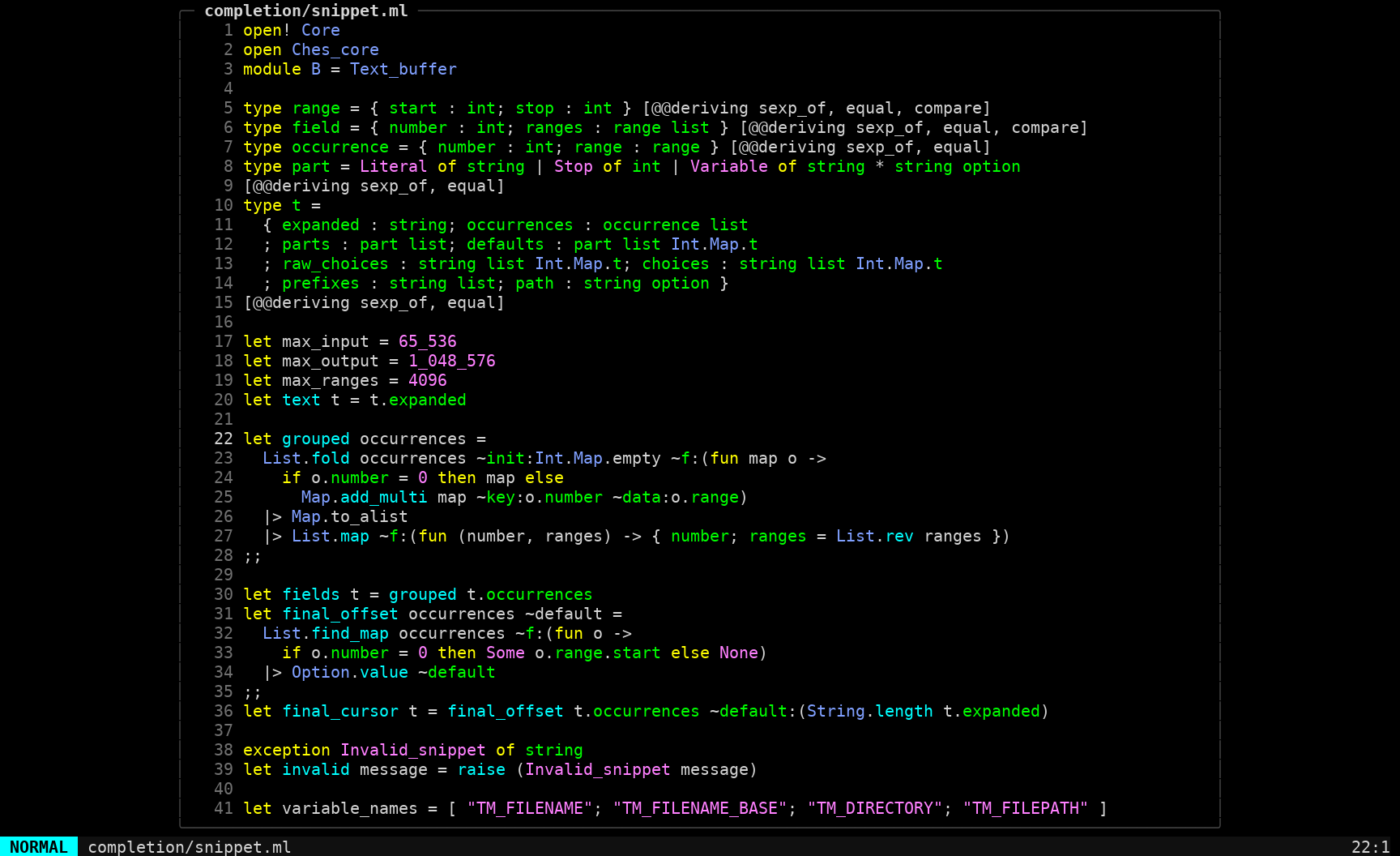
Ches editing Ches: completion/snippet.ml, in the default Vim Classic theme.
A workspace that stays out of your way
- Modal editing. Normal, Insert, and characterwise, linewise, and blockwise Visual modes, with counted motions, operators, search, indentation, and undo.
- Tiles when you need them. Start in Zen, open supporting views around your document, or switch to borderless Bare mode. Keep independent files in tabs.
- Find your place. Fuzzy file and current-document pickers, project content search, and editable directory listings for working across a project.
- Git without leaving the editor. A lazygit/Magit-inspired view for diffs, staging, commits, branches, history, and merge or rebase conflicts.
- Language-aware editing. Built-in Tree-sitter highlighting for OCaml, Verilog,
SystemVerilog, and GAS assembly. Attached language servers supply completion,
hover, definitions and references; OCaml also supports signature help and
interface/source switching. Inspect servers with
Space l i. - Reusable snippets. Searchable templates, linked fields, choices and filename variables, with custom snippets defined in your OCaml configuration.
- Make it yours. Executable
config.ml, live theme previews, semantic completion colors, adjustable layouts, and optional key hints. Runtime changes remain session-local unless you put them in your configuration.
From Zen to a workspace
Space v z switches between focused editing and the tile workspace. Keep a
directory browser beside your source, with status, problems and notification
history in supporting tiles.
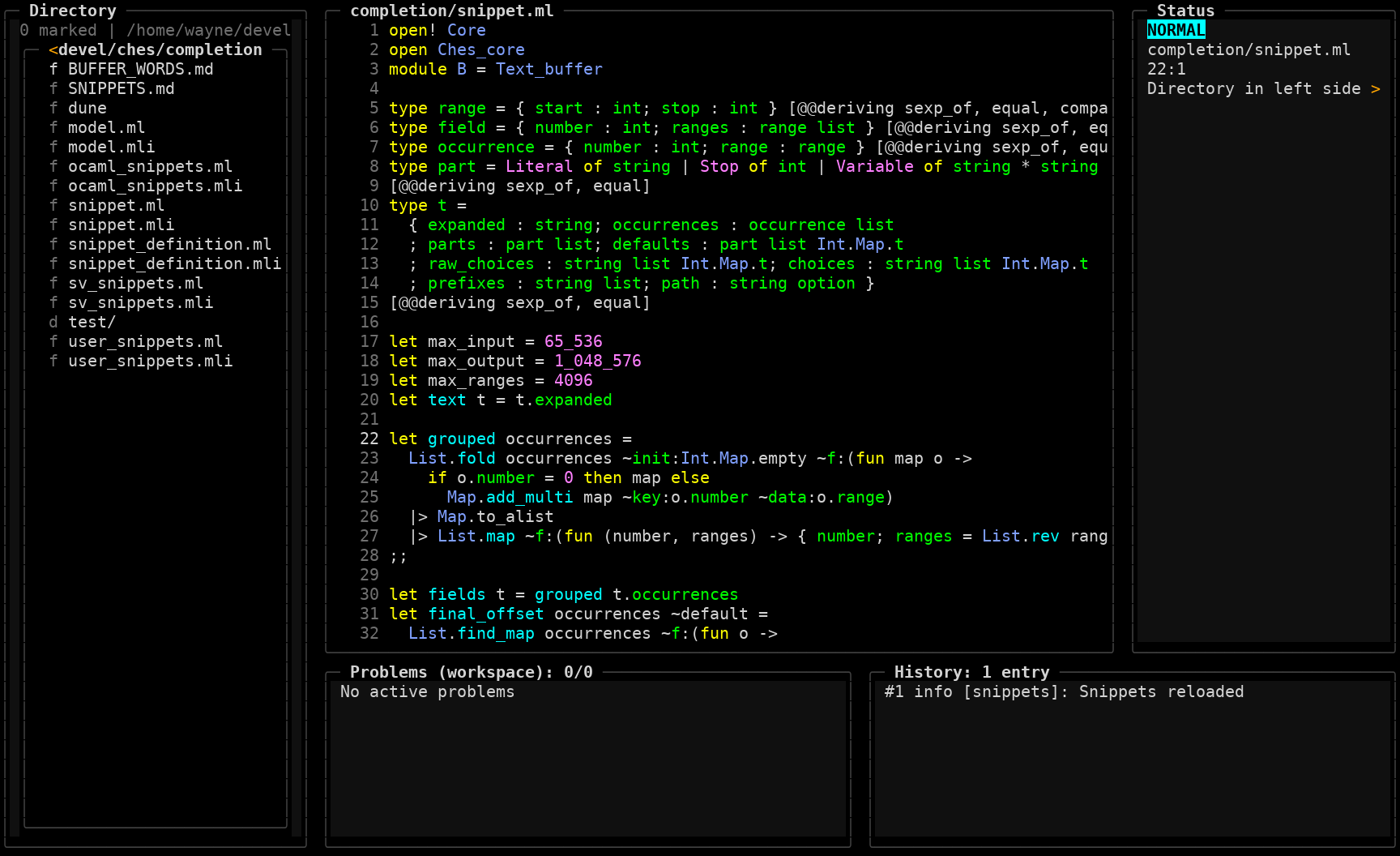
Tile Terms
An interactive shell, one toggle away. Space / opens or hides a Tile Term;
3 Space / selects terminal 3. Each numbered session keeps its shell, jobs,
screen, and preferred size while hidden.
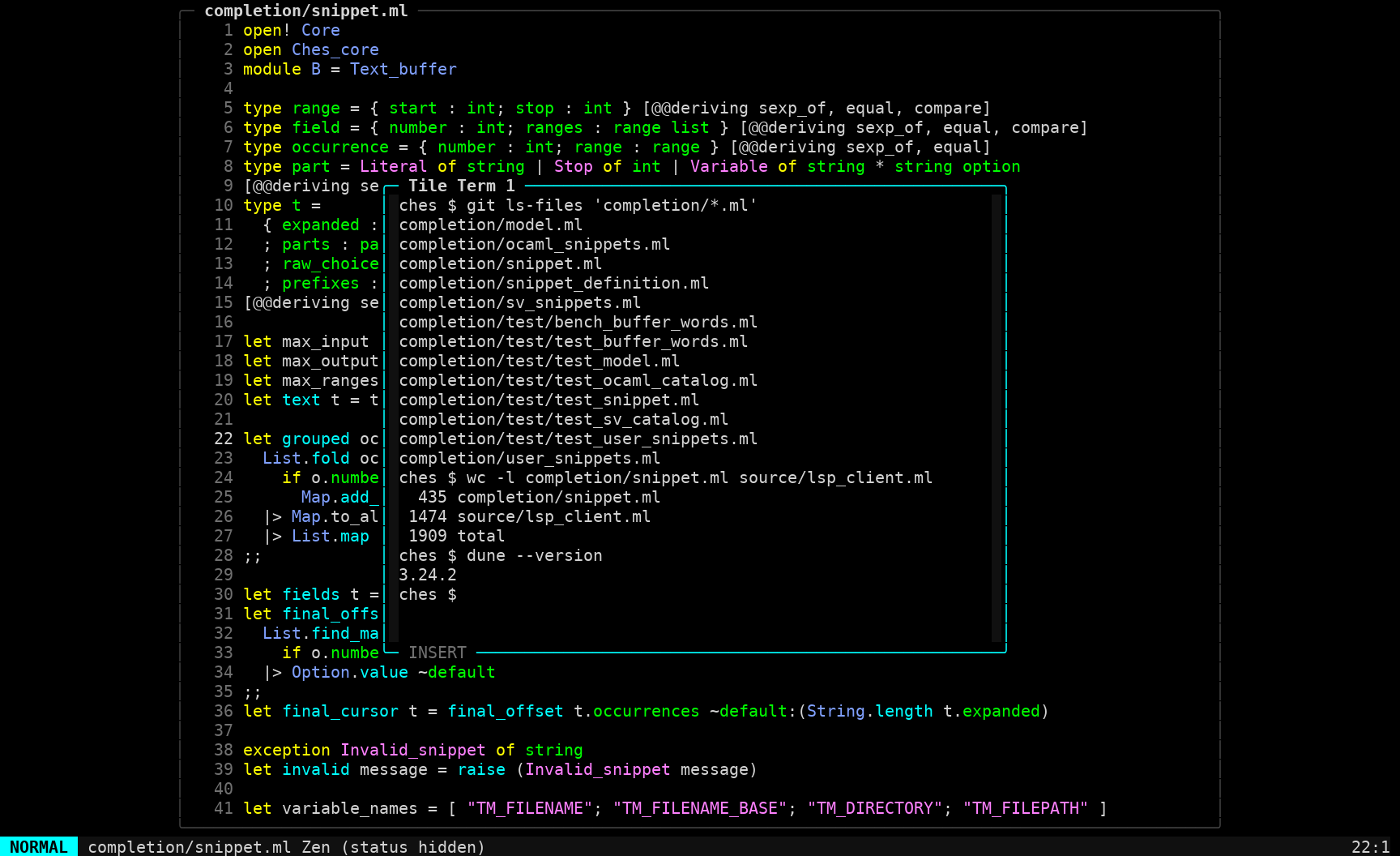
Toggle directly from Normal or Insert mode. Use rapid jk to enter terminal
Normal mode, then navigate, select, and yank text into the editor. i returns
to the shell; + / - resize the float.
See the Tile Terms guide for modes, numbered sessions, and Insert-mode shortcut timing.
Find code without losing your place
Project files and symbol references have source previews. Inspect the result first, jump when you're ready, and use Ctrl-o to return.
Project navigation — fuzzy file search with source preview
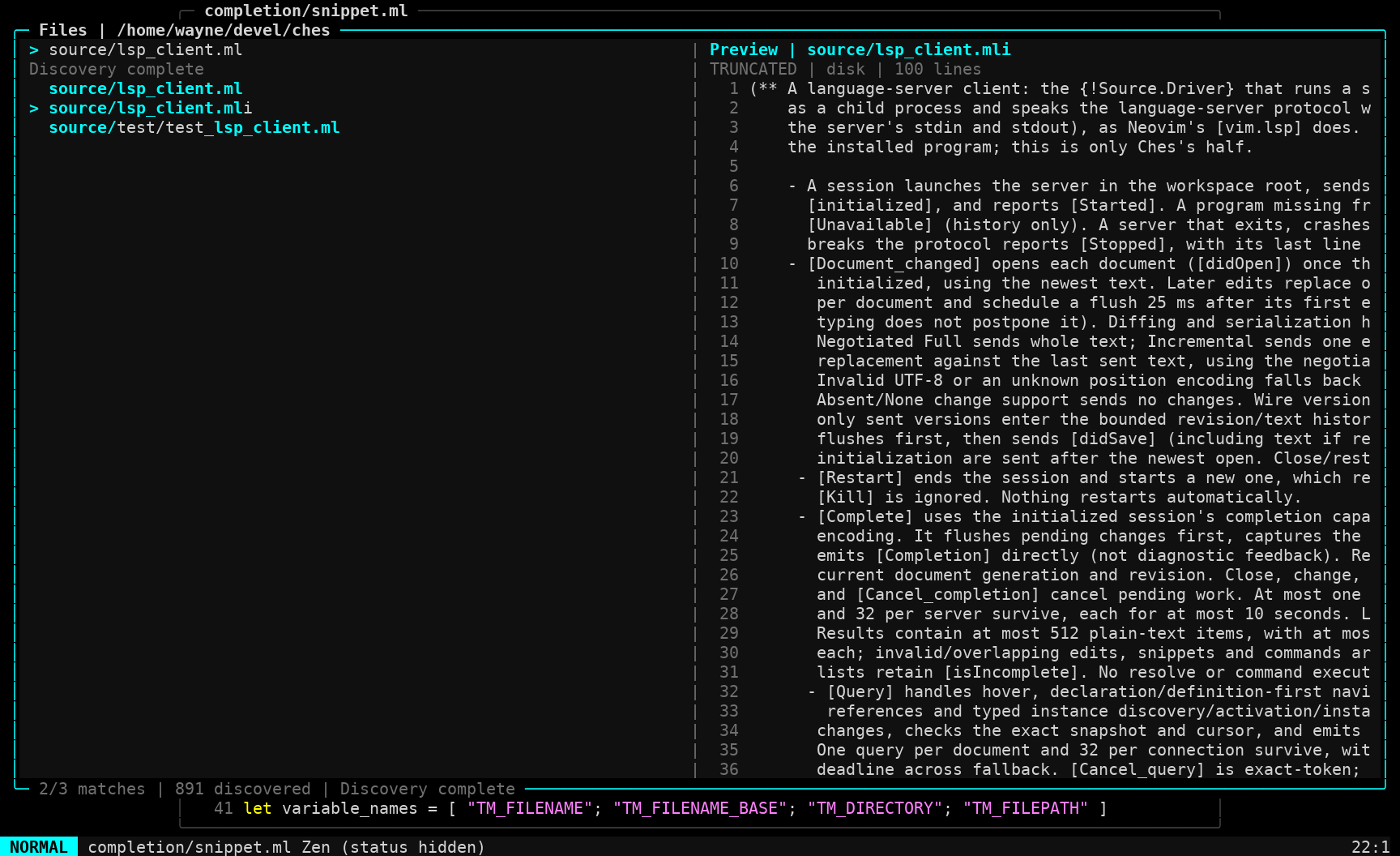Find references — real ocamllsp results with a highlighted source preview
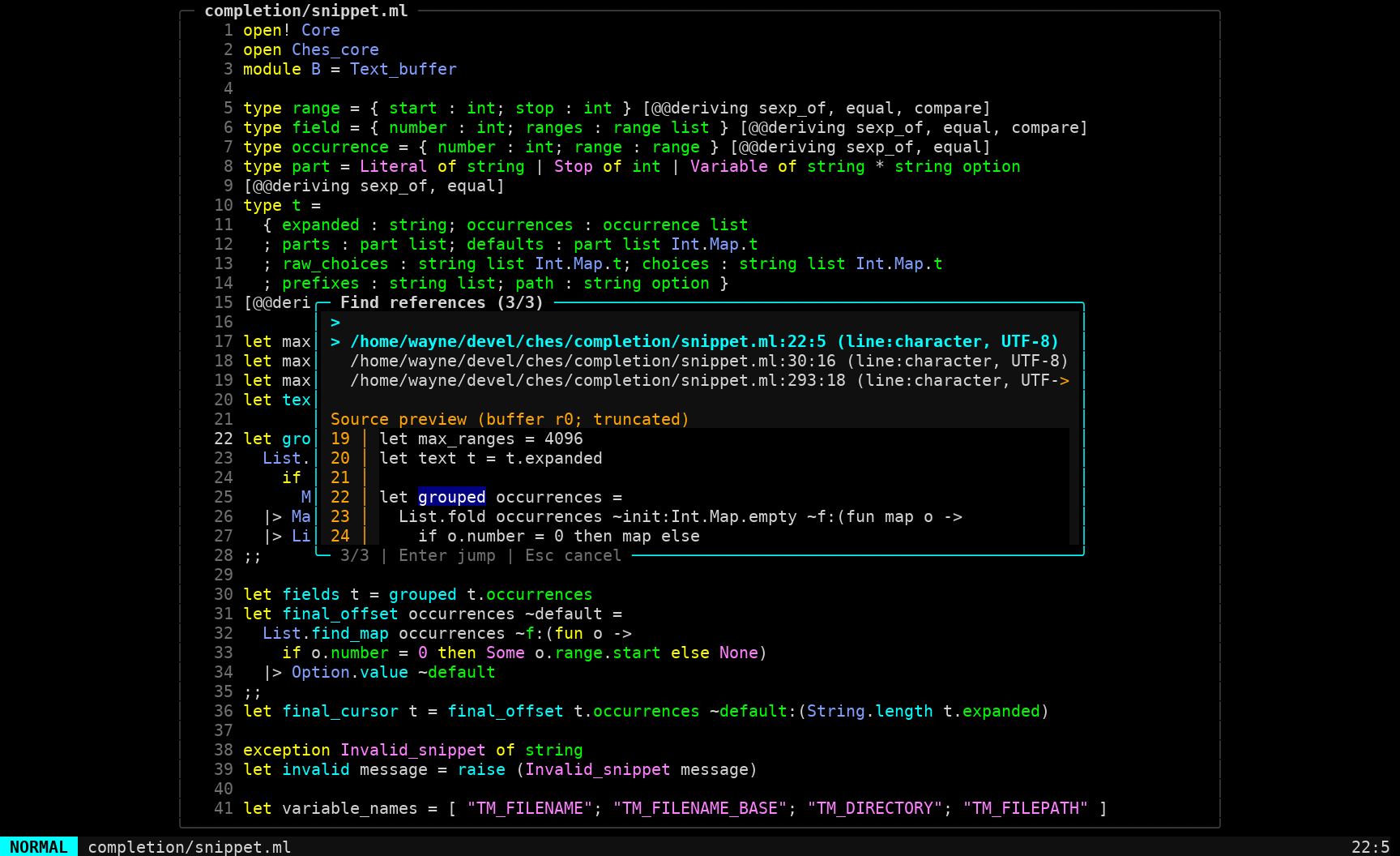These captures use real repository files and live application output. The capture recipe describes the reproducible terminal-frame rasterization and its limits.
Getting started
Linux download packages
Ches can be packaged as an extract-and-run .tar.gz containing its executable,
notices, source snapshot, manifest and checksums. Basic editing does not require
an OCaml/opam installation: highlighting assets and terminal emulation are embedded.
The currently tested build targets Linux x86-64 with glibc 2.38 or newer
(built on Ubuntu 24.04). It is not a universal static binary. Git, ripgrep, language
servers, and ocamlc for evaluating config.ml are optional external tools for
their respective features.
From the development checkout, create a download package with:
python3 scripts/package_release.py --version snapshot --strip -j 6
Artifacts are written to dist/. See the release/installation guide
for extraction, verification, platform requirements, and the outstanding
source/license work before a public release. No hosted release is published by
this command.
Build from source
With the development toolchain available:
dune build -j 12 bin/ches.exe
_build/default/bin/ches.exe .
Open a directory to browse a project, or pass a file path to edit it. If you have
ches on your PATH:
ches completion/snippet.ml   # Vim Classic theme, Zen layout
ches --workspace .           # Full tile workspace
ches --bare core/editor.ml   # Borderless editing (also --superzen)
ches --theme glacier .       # Choose a different theme
ches --list-themes           # Browse available palettes
A few keys to start
Space below means the spacebar. Unless noted, editor commands use Normal mode.
| Keys | Action |
|---|---|
h / j / k / l |
Move |
i / Escape |
Enter Insert / return to Normal |
u / Ctrl-r |
Undo / redo |
Space w / Space q |
Save / quit |
Space c c |
Open the command palette |
Space f f / Space f g / Space f l |
Find files / search contents / find lines |
Space o |
Show the file's parent in the main area / return to file |
Space b n / Space b p |
Next / previous file tab |
Space g g |
Open the Git view |
Space l i |
Inspect attached language servers and their status |
K / gd / gD / gr |
Hover / declaration / definition / references |
Ctrl-o / Ctrl-i |
Jump back / forward |
Ctrl-n (Insert) |
Request completion manually |
Space / / N Space / |
Toggle Tile Term / select numbered session; also works in Insert |
Space v z / Space v B |
Toggle Zen / Bare |
Space v T |
Choose a theme |
The editor reference covers the full keymap, directory
operations, and terminal controls. ches --help lists command-line options.
Documentation
- Editor reference — keys, modes, workspace, Git, and Tile Terms.
- Directory workspace — browsing and filesystem operations.
- Pickers — file navigation and project search.
- Development — toolchain, builds, and tests.
- Configuration — OCaml settings, snippets, and completion colors.
- Release packaging — downloadable archives, installation, and runtime requirements.
- Architecture — source layout and module boundaries.
- Project status — support, limitations, and validation notes.
For design notes, backlogs, and implementation history, see the documentation index.